Module 3 - Configuring the CU
Introduction
Configuration of the OS6 Control Unit (CU), either as part of a new system or if being added to an existing one, consists of the following tasks:
- Preparation
- Create a bootable flash drive with Luna Windows image
- Setup BIOS
- Installation and authentication of the Luna configured Windows Operating System.
- Configuring the CU
- Set IP address as per Network Diagram
- Set date/time
- Network Bandwidth Verification
Preparation
Before configuring the CU, ensure that it is not connected to the Internet. If connected, Windows may automatically start downloading updates which may disrupt the installation process and risk an incomplete installation.
Creating Bootable Flash Drive with Luna Windows ISO
The first step is to acquire the latest revision of the Luna configured Windows 11 operating system and create a bootable USB.
- Download Luna Windows ISO
- Insert USB Flash Drive – minimum 16GB
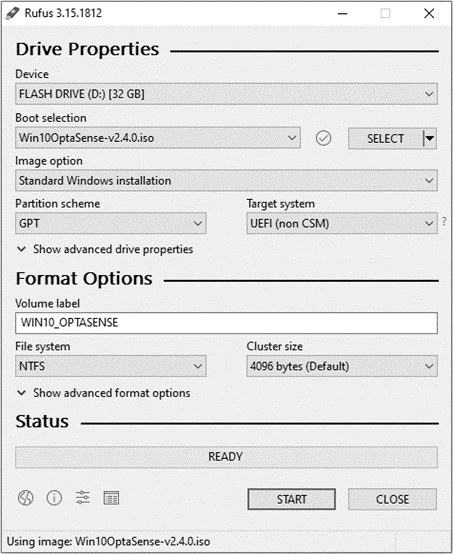
- Download and run Rufus software
- Under the Device section, select the USB Flash Drive that you have inserted
- Click the SELECT button and select the Windows ISO that you have downloaded
- Make sure the options are as follows:
- Partition scheme – GPT
- Target system – UEFI
- File system – NTFS
- Click START to create a bootable flash drive
BIOS setup
The BIOS settings of the CU need to be configured so that if there is a power loss, the CU will return to an ON state. The following steps need to be followed to achieve this:
- Power on the CU.
- During boot, press F12 (or the appropriate key) to enter the BIOS setup.
- Change SATA Configuration to AHCI
- System Configuration > SATA Operation > AHCI
- Turn off Secure Boot
- Secure Boot > Secure Boot Enabled > Disabled
- Boot Mode to UEFI
- General > Boot Sequence > UEFI
- Ensure Local Drive – where the operating system will be installed – is before Flash Drive with the Windows image
- General > Boot Sequence > Use up and down arrives to change order, top items have the highest priority
- Save changes and exit
- Apply > Exit. If using a Rack Mounted CU, press ‘F4’ instead
Installation of the Luna Windows Image
- Boot from USB Flash Drive
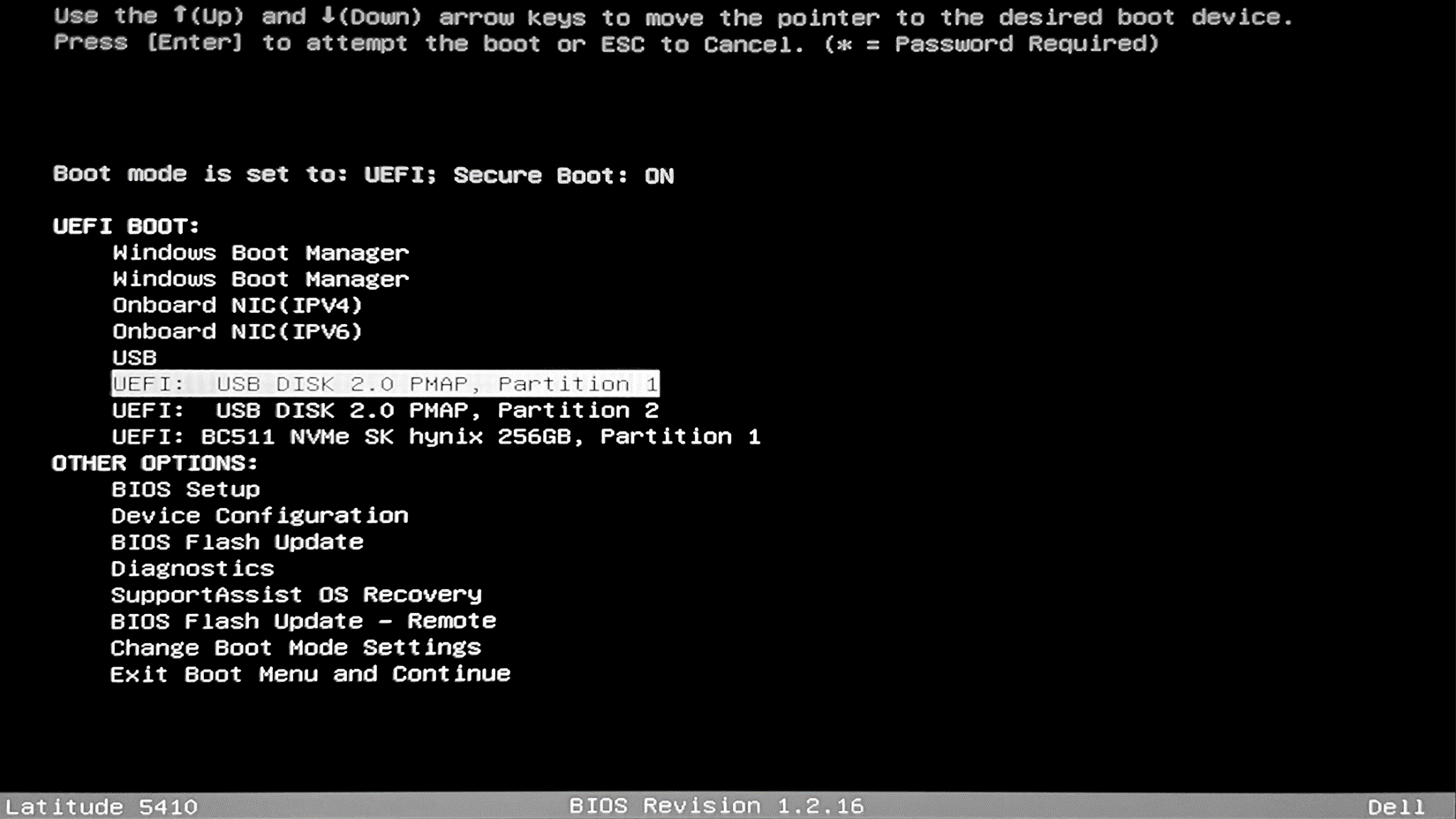
- Invoke the boot menu by pressing the appropriate key (e.g. F11) as the computer boots up.
- Select the bootable USB Flash Drive from the list of boot options. If “USB Flash Drive” does not appear, it may appear as an option with “USB” and the brand of flash drive.
-
Follow the Windows Installation Process
-
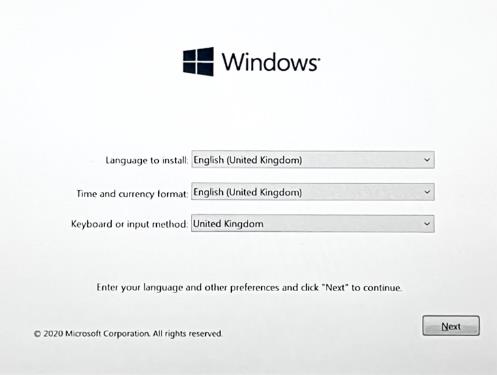
Select Language, Time and currency format, Keyboard or input method and select next.
-
-
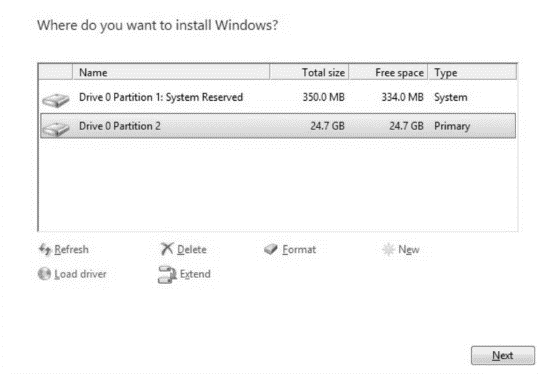
Select drive to install Windows
- Select the primary hard drive as the location for the Windows installer.
- If there are multiple partitions, erase them. Note: deleting a partition will delete all the files on that partition.
-
Press Next to begin the installation process. This should take about twenty minutes and the system will reboot several times during the process.
-
Following the Windows installation, several scripts will run automatically to install additional applications that are included in the Luna Windows build.
-
Once the installation is complete, login to Windows.
-
Apply the Windows Licence Key and associated AMT (asset management tag) stickers neatly to the CU unit.
Configuring the Control Unit
Setting the IP address of the CU
The IP addresses of the CU needs to be changed to reflect the approved Network Diagram (ND). The IP addresses can be changed in the Network and Sharing Centre within the Control Panel. Note, both network cards may need IP addresses.
- Right-click on network connections section located on the right-hand side of the toolbar and select Open Network & Internet Settings
- Under Advanced network, Settings click Change adapter options
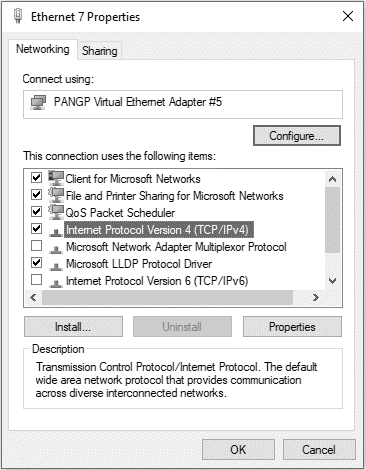
- Select the network interface that you would like to edit, right-click, and select Properties
- Highlight Internet Protocol Version 4 (TCP/IPv4) and click Properties
Setting the Date and Time to System NTP
All OS6 systems are installed with a Network Time Protocol (NTP) device. This can either be supplied by Luna or by the end-user. The IP address for the NTP can be found in the Network Diagram.
Configure the CU to use the NTP device as it's time source:
- Right-click on the time and date located in the bottom right of the screen
- Select ‘Adjust Date/Time’
- Select ‘Add clocks for different time zones’ on the right-hand side to open a pop-up window.
- Select the ‘Internet Time’ tab
- Select ‘Change settings…’
- In the Server text box, enter the IP address of the NTP and select ‘Update Now’
- Confirm the date and time has been synchronised with the NTP.
Activating Windows
- Open Window Search, type Settings and press Enter.
- Within the settings window search for "Activiation" and select the Activations Settings page. If Windows is already activated then the following steps can be ignored.
- The majority of the new Dell PCs already have a product key installed. To retrieve the preinstalled Windows 11 product key:
- Open a command prompt window.
- Type the following command: wmic path softwarelicensingservice get OA3xOriginalProductKey
- If Windows still requires activating, select the link ‘Activate’. If the CU is connected to the Internet a pop up will appear asking ‘Activate Windows Online’ select this and Windows will automatically activate itself online.
Completing a Control Unit configuration
Following successful completion of the Window’s installation, the Control Unit will require some first time bootup configuration and must be configured in accordance with the Client Configuration Variables Profile and the installation of OS6.
Detail on the customisation of the Control Unit can be found in:
The Client Configuration Variables Profile is a client and project specific publication derived from a Luna template. For more detail consult the relevant project manager.
The following actions can only be completed once you have a full working and installed system.
Network Bandwidth Verification
To ensure that the network provided by the client is running as required, it is necessary to run some simple bandwidth analysis tests as part of the installation procedure. One of the main reasons for running additional tests is that the data provided by ethernet testers often doesn’t tally with real operating conditions.
The Network Bandwidth software that Luna currently uses is installed on the network nodes as part of the OS installation, the Control Unit test script can be downloaded here (Note that this link will only work for Luna employees).
The required bandwidth for your project should be found in your project documentation or consult your project manager.
OS6 uses a distributed database and so there will be network activity even when the system is inactive. The network bandwidth scripts should be run before OS6 has been installed and the database has been configured. The scripts can still be run afterwards but expect a modest amount of background traffic.
If you are running the scripts after OS6 has been installed, ensure that all processes have been stopped via the GUI.
Instructions for use
It is critical that the network backbone is tested for all nodes in the system. To conduct further testing use the following procedure: Network Bandwidth Testing.